Microsoft Entra ID – Enabling Custom Security Attributes

Microsoft Entra ID allows adding business specific properties on User and Service Principle objects. This capability is slightly different from the Extensions feature that allows extending Entra ID resources.

The key difference between Extensions and Custom Security Attributes, as the latter’s name implies, supports restricting Read/Write access to these attributes using RBAC and Permissions.

These attributes are intended to store sensitive information that can only be accessed or edited by users with appropriate permissions or roles. Another use case can be to tailor access control. For instance, Hospitals and Healthcare facilities can define custom security attributes such as “Patient Records Access” and “Pharmaceutical Inventory Access” and assign these attributes to appropriate users.

While granting access to Applications, admins can then configure RBAC to provide access to Doctors, Nurses and Administrative Staff to only access the data and system relevant to their roles. A doctor can have access to patient records, while an IT technician has access to the hospital’s network infrastructure.

Enabling Custom Security Attributes

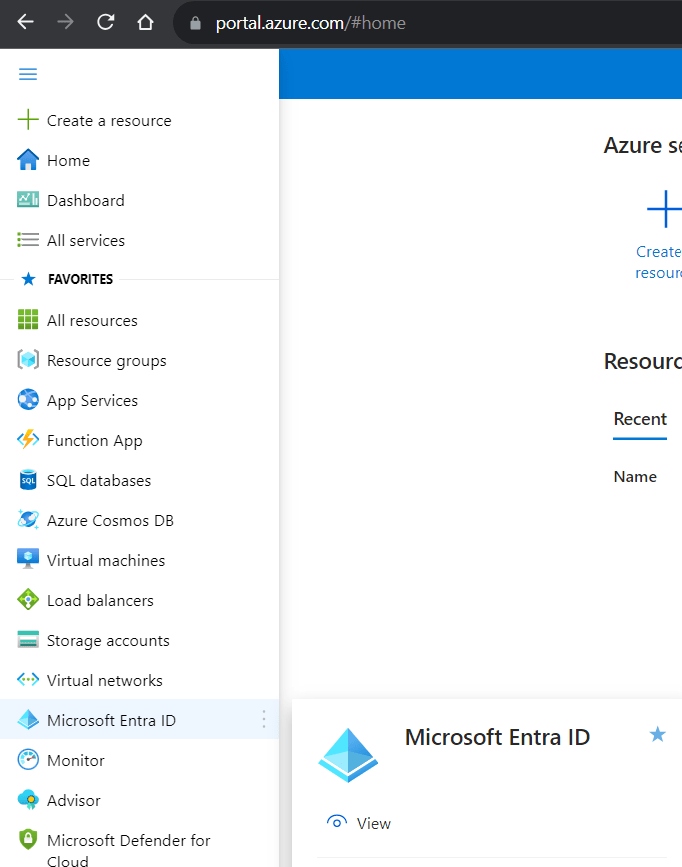
After logging into the Azure Portal, navigate to the “Microsoft Entra ID” application.
Click the “Custom Security Attributes” link on the left pane. You will notice the “Add Attribute Set” button is disabled.

Two separate Roles “Attribute Definition Administrator” and “Attribute Assignment Administrator” need to be configured for setting up Custom Attributes Creation and Assignment access respectively.

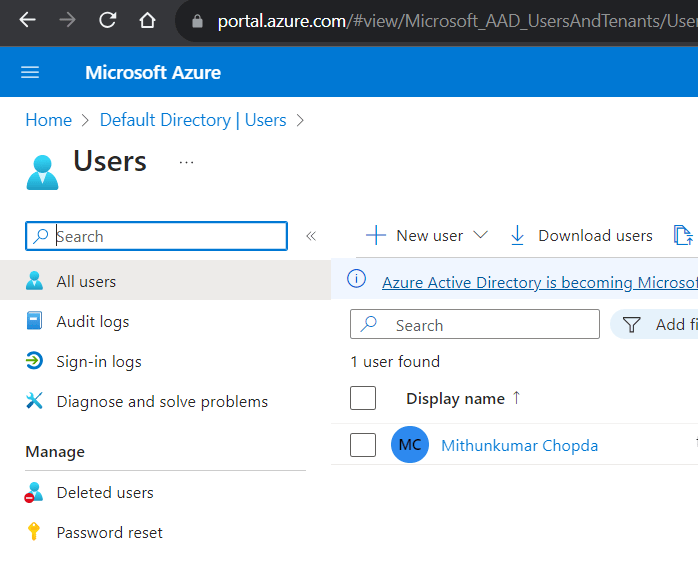
Navigate to the Users page by clicking “Users” under the Manage section on left pane. Find the user whom you wish to allow Creating Custom Attributes. Click on the Display name to assign roles.
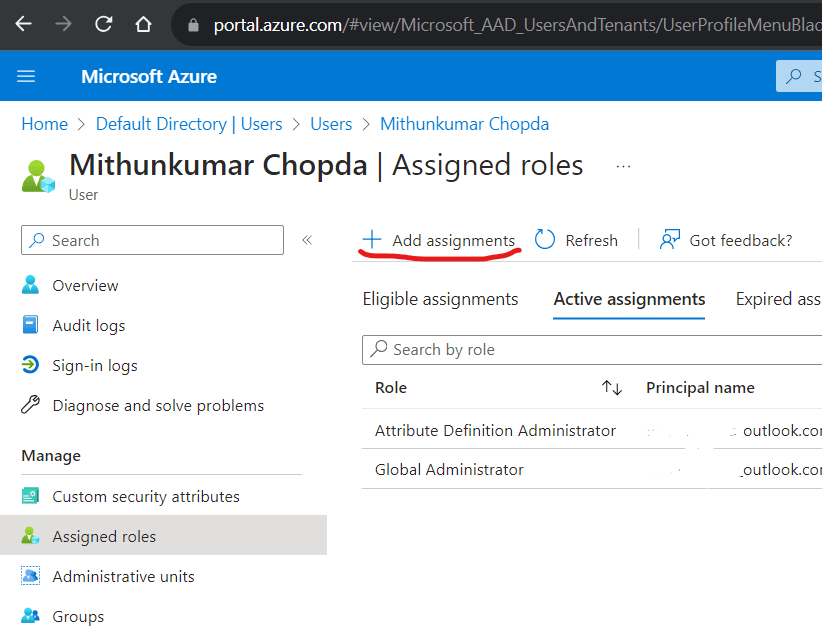
Click the “Assigned roles” link on the left pane. Click the “Add assignments” button on the toolbar.
Search for “Attribute Definition Administrator” role and follow the wizard to complete the assignment. Be sure to mark the role assignment as “Active” instead of “Eligible”.

Repeat this step for assigning the “Attribute Assignment Administrator” role either to same user or another user.

Now, head to the “Custom Security Attributes” blade on the left pane on the Microsoft Entra ID application page. You should see the “Add attribute set” button enabled on the toolbar.
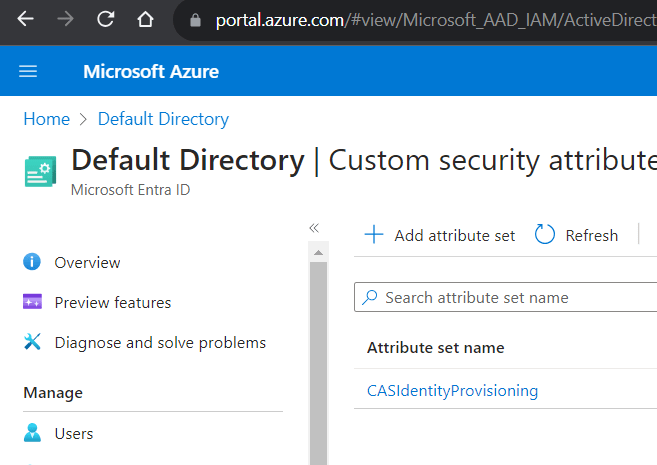
An Attribute Set is required for grouping the custom attributes and needs to be created before creating Custom Attributes. Once an Attribute Set is created, add new attributes to the Set.
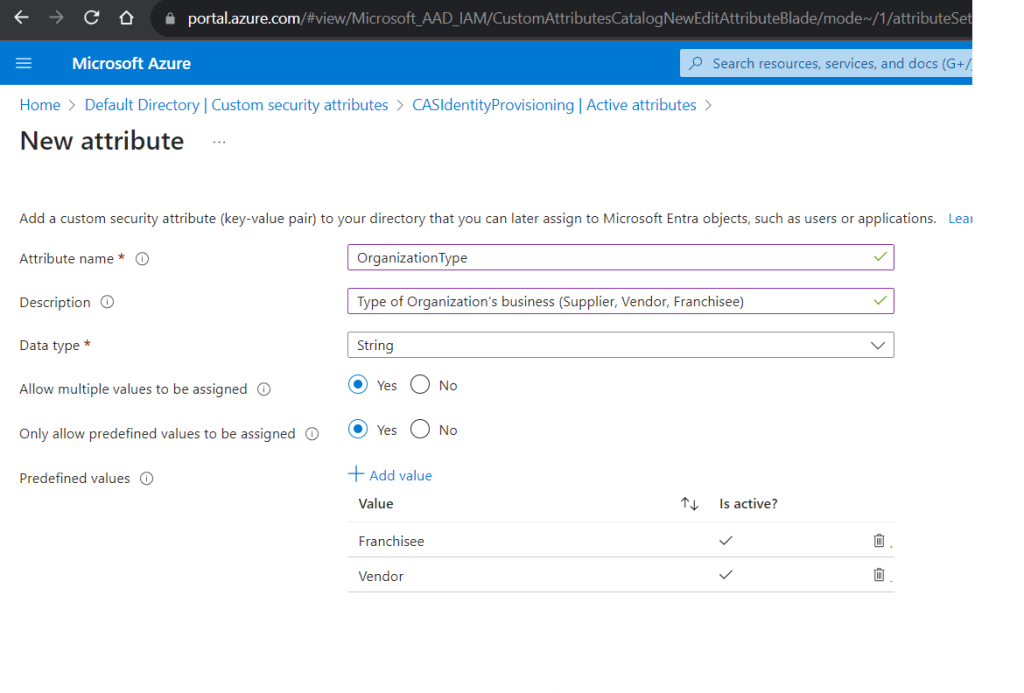
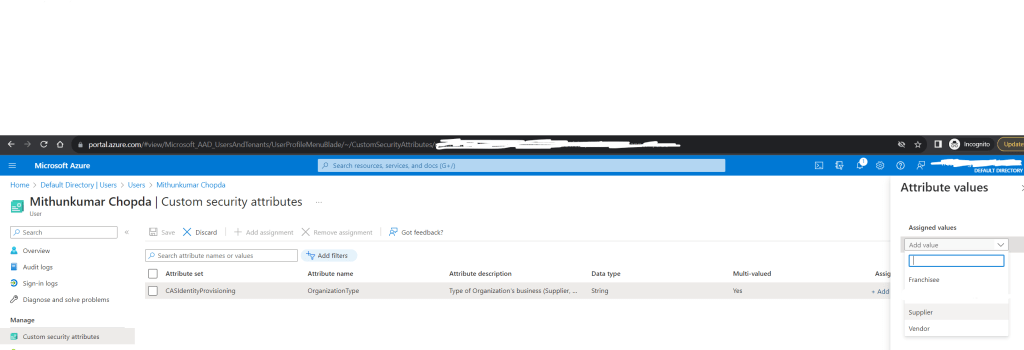
Once the Attributes are created, head back to the Users page, search the user, click the “Display name”. Click the “Custom security attributes” blade on the left pane. Click “Add assignment” button on the toolbar to select the custom attribute you just created and assign a value.
Azure Active Directory B2B

Azure Active Directory B2B (Business-to-Business) is a feature that extends the capabilities of Azure AD to allow collaboration between organizations. It simplifies the process of sharing resources with external users while maintaining security and compliance. In this blog post, we will delve into the key concepts of Azure AD B2B, helping you understand its importance and how to leverage it effectively.

What is Azure Active Directory B2B?

Azure Active Directory B2B is a service provided by Microsoft that enables organizations to collaborate with external partners, customers, or suppliers securely. It allows these external users to access company resources and applications without the need for them to have a dedicated Azure AD account. Instead, they can use their own work or social identity to gain access.

Key Concepts:

1. Guest Users: In the context of Azure AD B2B, external users are referred to as “Guest Users.” These users are invited to collaborate with your organization. Guest users can be individuals with email addresses from other domains, making it easy to collaborate across organizations.

2. Invitations: Invitations are the foundation of Azure AD B2B. Organizations send invitations to external users, allowing them access to specific resources or applications. These invitations are secure and can be managed and monitored within Azure AD.

3. Collaboration Scenarios: Azure AD B2B supports various collaboration scenarios, such as sharing documents in SharePoint, collaborating in Microsoft Teams, or accessing applications like Azure DevOps. Organizations can choose the level of access and permissions for guest users in these scenarios.

4. Security and Conditional Access: Security is paramount in B2B collaborations. Conditional Access Policies in Azure AD B2B allow organizations to enforce security requirements, such as multi-factor authentication (MFA), based on user attributes and behavior. This ensures that guest users meet security standards.

5. Self-Service Sign-Up: Azure AD B2B offers self-service sign-up, allowing external users to accept invitations and create their own guest accounts. This simplifies the onboarding process and reduces administrative overhead.

6. Azure AD B2B vs. Azure AD B2C: It’s essential to distinguish between Azure AD B2B and Azure AD B2C. B2B focuses on collaborating with external organizations, while B2C is designed for consumer identity and access management.

Benefits of Azure AD B2B:

Simplified Collaboration: B2B makes it easy to collaborate with partners and customers, enhancing productivity and communication.-

Enhanced Security: With Conditional Access Policies and Identity Protection service, organizations can secure their resources even when accessed by Guest Users.

Scalability: Azure AD B2B scales effortlessly to accommodate growing collaboration needs.

Audit and Monitoring: Azure AD provides detailed audit logs, allowing organizations to monitor guest user activity and maintain compliance.

Conclusion: Azure Active Directory B2B is a crucial tool for modern organizations seeking secure and efficient collaboration with external partners. By understanding these key concepts and leveraging the capabilities of Azure AD B2B, organizations can foster productive collaborations while maintaining the highest standards of security and compliance.In upcoming posts, we will dive deeper into specific use cases and best practices for implementing Azure AD B2B effectively in your organization. Stay tuned!