
Microsoft Entra ID allows adding business specific properties on User and Service Principle objects. This capability is slightly different from the Extensions feature that allows extending Entra ID resources.
The key difference between Extensions and Custom Security Attributes, as the latter’s name implies, supports restricting Read/Write access to these attributes using RBAC and Permissions.
These attributes are intended to store sensitive information that can only be accessed or edited by users with appropriate permissions or roles. Another use case can be to tailor access control. For instance, Hospitals and Healthcare facilities can define custom security attributes such as “Patient Records Access” and “Pharmaceutical Inventory Access” and assign these attributes to appropriate users.
While granting access to Applications, admins can then configure RBAC to provide access to Doctors, Nurses and Administrative Staff to only access the data and system relevant to their roles. A doctor can have access to patient records, while an IT technician has access to the hospital’s network infrastructure.
Enabling Custom Security Attributes
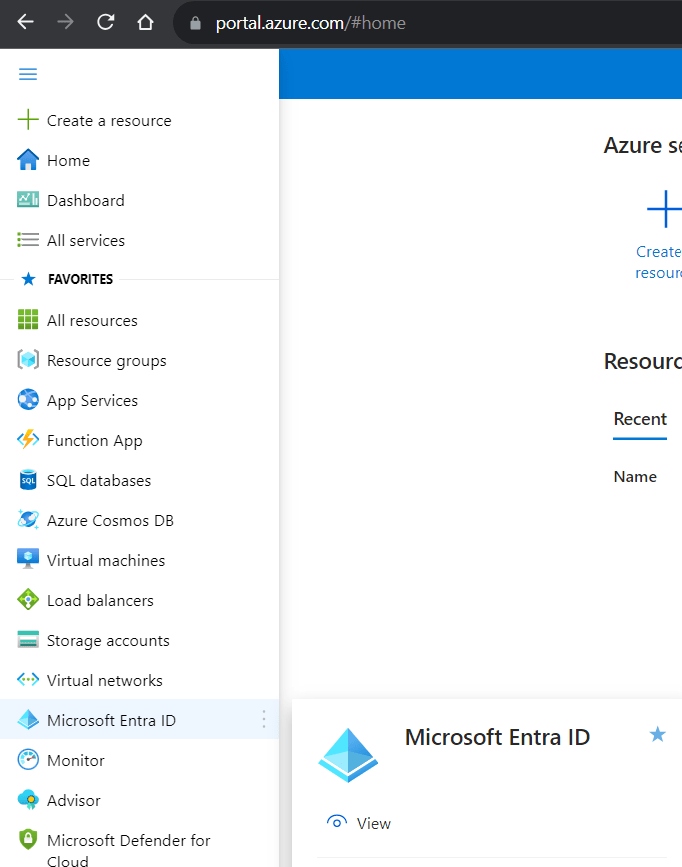
After logging into the Azure Portal, navigate to the “Microsoft Entra ID” application.
Click the “Custom Security Attributes” link on the left pane. You will notice the “Add Attribute Set” button is disabled.

Two separate Roles “Attribute Definition Administrator” and “Attribute Assignment Administrator” need to be configured for setting up Custom Attributes Creation and Assignment access respectively.
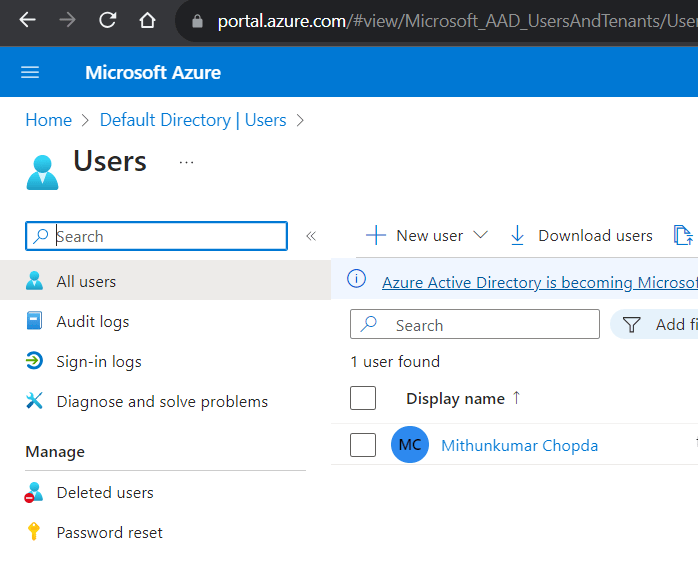
Navigate to the Users page by clicking “Users” under the Manage section on left pane. Find the user whom you wish to allow Creating Custom Attributes. Click on the Display name to assign roles.
Click the “Assigned roles” link on the left pane. Click the “Add assignments” button on the toolbar.
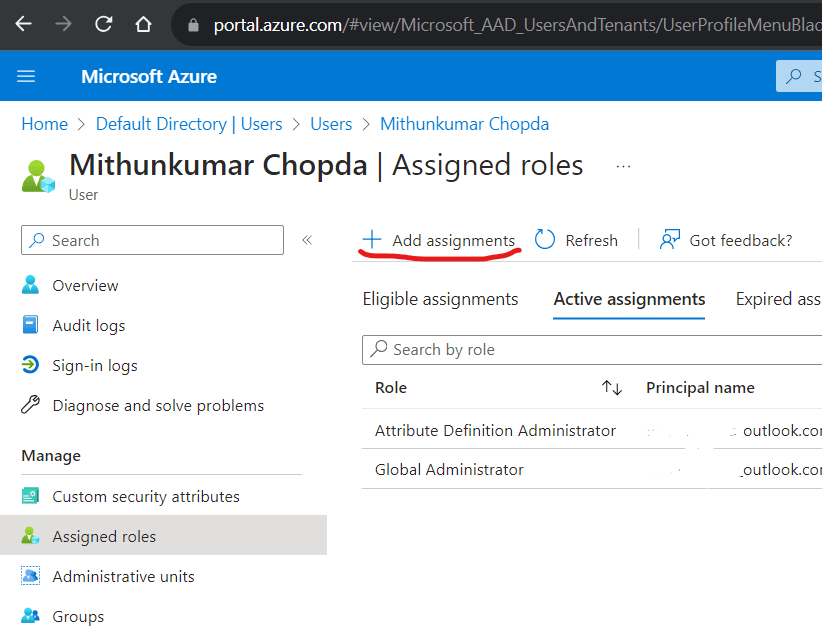
Search for “Attribute Definition Administrator” role and follow the wizard to complete the assignment. Be sure to mark the role assignment as “Active” instead of “Eligible”.
Repeat this step for assigning the “Attribute Assignment Administrator” role either to same user or another user.
Now, head to the “Custom Security Attributes” blade on the left pane on the Microsoft Entra ID application page. You should see the “Add attribute set” button enabled on the toolbar.
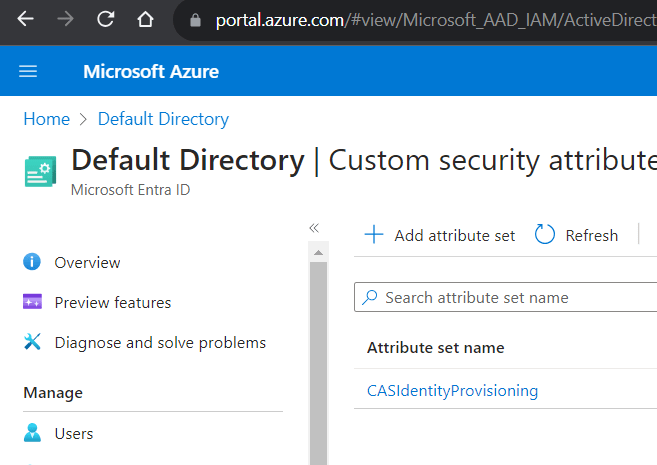
An Attribute Set is required for grouping the custom attributes and needs to be created before creating Custom Attributes. Once an Attribute Set is created, add new attributes to the Set.
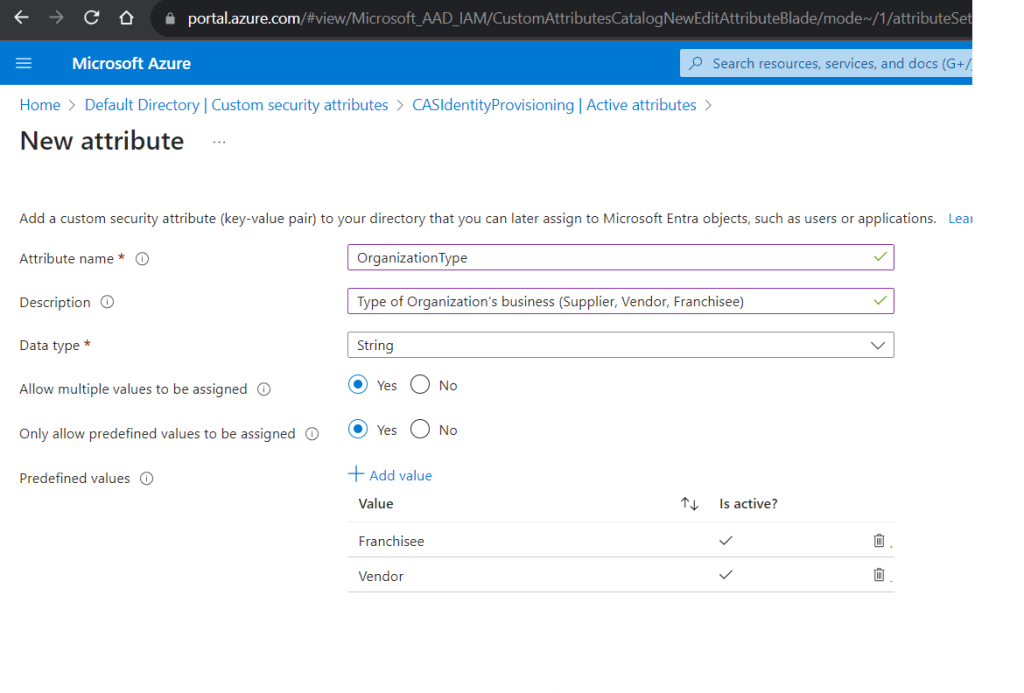
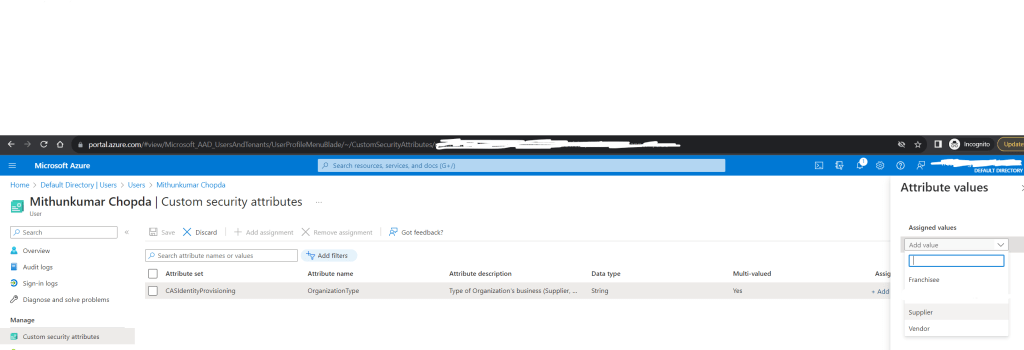
Once the Attributes are created, head back to the Users page, search the user, click the “Display name”. Click the “Custom security attributes” blade on the left pane. Click “Add assignment” button on the toolbar to select the custom attribute you just created and assign a value.
 Mithun Chopda